Logging in (and out)
The workbench requires you to be logged in to allow the workbench to associate models with your personal activity. Signup / Login asks for the following.
- Email address – this is what you will be identified with. It needs to be a valid email address that you have access to when you sign up.
- Name – Your name, as it will be presented on the screen and to other users when you publish your models.
- Password – a password that you set up during the sign up process.
Users are part of one or more access groups, based on which they have access to the public models that are part of that group.
Public, User and Scratch Models
Within the workbench, model are stored in our online database.
Modes are categorized into three types
- User models are your private models. They cannot be seen by others. They are typically models you have made and want to preserve.
- Public models are models that are visible to everyone with access the group that the model belongs to. Others than the owner, with access to that group, can read the model, but cannot modify it.
-
Scratch models are models that are only temporarily used. They are only visible to you. They can be easily discarded collectively with the
Delete All Scratch Modelsbutton. They are still preserved across sessions though.
Creating, Editing and Renaming a Model
From the starting page of the various model domains, there are buttons to create a new model. For example, for FSA models.
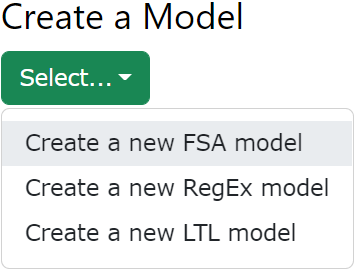
After clicking such a button, you will be prompted for a name of the model. Then it should appear in the list of user models. The model will have a default template body.
The model can be edited by clicking on the Open button.

The model can be deleted (permanently!)

A model can also be renamed.
The Model Editor
The model editor provides feedback on the syntax. In particular, syntax errors are highlighted with a red squiggly line. Model validation errors are indicated by an orange squiggly line. Hovering the mouse above the error provides more information about the problem.
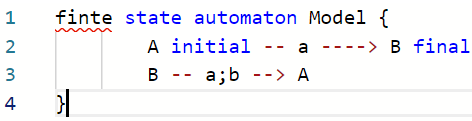
If you press Ctrl+Space in the editor you get auto-completion options. This may also help you to produce correct syntax.

Ctrl+F and Ctrl+H give Find, or Find and Replace options, respectively. F1 shows a long list of editor commands that you may use.
Managing Models
Models can be moved between categories by selecting a model and using the Publish/Unpublish/Scratch/Unscratch buttons.
The Change Group button can be used to change a particular model between access groups that you are a member of.
The Hand Over button allows you to hand over one of your models (the selected one) to another user of the CMWB. It requires you to know the e-mail address of the user that you want to hand the model to that they used to sign up with the CMWB.